
Quick Answer: TiviMate is an IPTV player — a media player app that plays live TV playlists supplied by your own IPTV service. It does not include channels itself. You add an M3U URL or Xtream API credentials from your provider, and TiviMate turns that data into a familiar channel list and program guide. It runs on Android TV, Google TV and Fire TV.
TiviMate IPTV player is one of the most searched phrases about the app, and it captures the core idea well: TiviMate is a player, not a provider. This guide explains what an IPTV player actually does, how TiviMate fits that role, what you need before you start, and how to get a playlist playing on your device. If you are brand new, start with our plain-language overview of what TiviMate is, then come back here for the practical setup angle.
What Is an IPTV Player?#
An IPTV player is software that plays television channels delivered over the internet instead of through an aerial, cable or satellite feed. It reads a playlist — a structured list of streams — and presents those streams in a usable interface: a channel list, a program guide, and playback controls. IPTV itself is a delivery method; the player is the piece of software that makes that delivery watchable on your device.
That separation matters. The player does not own or supply the content. It connects to a source you already have and renders what the source sends. For background on internet-delivered television as a concept, see the overview of IPTV on Wikipedia. Our focus here is the player side — specifically TiviMate.
Why TiviMate Is a Popular IPTV Player#
TiviMate is designed for TVs and remote controls rather than phones, which is why it feels closer to a set-top box interface than a generic media app. Its commonly cited strengths include:
- A guide-first layout — an electronic program guide (EPG) is central to the interface, so you browse what is on rather than a raw list of channels.
- Playlist flexibility — you can add M3U URLs and Xtream API credentials supplied by your provider.
- Organisation tools — channel groups, favourites and hiding, so a large lineup stays manageable.
- Optional Premium features — recording, multi-screen viewing, catch-up and the Companion app are unlocked with Premium. See our breakdown of TiviMate Premium features.
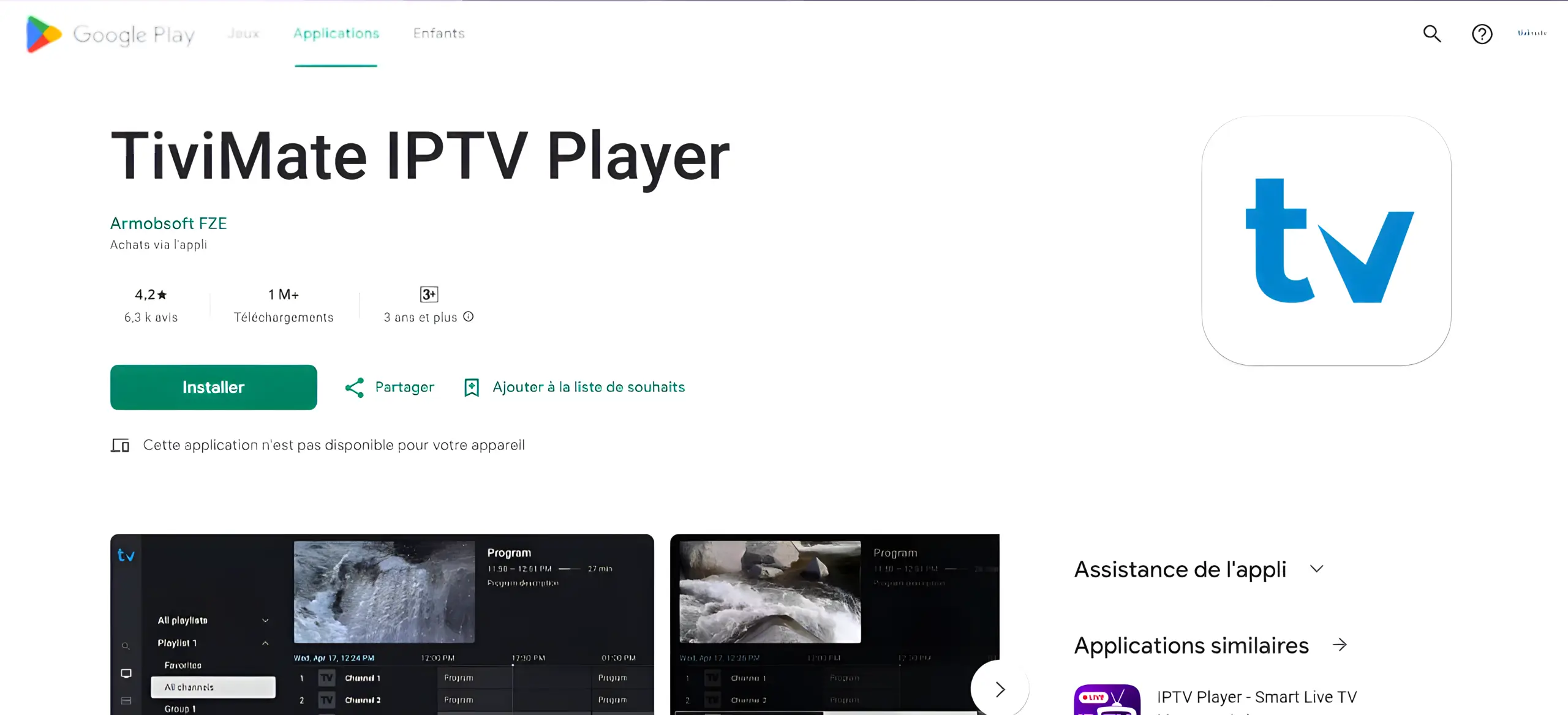
TiviMate is distributed on the official Google Play Store and also offers an official APK route. It is developed by ArmoSoft and updates periodically. As always, install it from the official TiviMate site or the TiviMate listing on Google Play rather than an unknown mirror.
What You Need Before You Start#
The player cannot do anything without a source. Before you open TiviMate, have one of the following from the service you use:
| You were given… | Use this method in TiviMate |
|---|---|
| An M3U or M3U8 playlist URL | Add M3U playlist |
| A server address, username and password | Xtream Codes / API login |
| A portal address and device identifier | Stalker Portal (if supported) |
Whichever you have, treat the details as credentials and keep them private. For each method there is a dedicated walkthrough: adding an M3U playlist, Xtream Codes setup, and Stalker Portal setup.
How to Add a Playlist to the TiviMate IPTV Player#
- Install and open TiviMate on your Android TV, Google TV or Fire TV device.
- Choose add playlist and select the method that matches the details you were given.
- Enter the details exactly — watch for stray spaces, wrong ports or altered characters.
- Submit and wait for the source to respond and TiviMate to process the playlist.
- Check channels and the guide separately, so you can tell which part loads and which does not.
Menu wording varies slightly between versions, so follow the labels on your own installation rather than an exact path from an older guide.
TiviMate IPTV Player on Different Devices#
TiviMate runs on platforms that support the Android TV app model. The main options are below; each has its own install notes in our device guides.
- Firestick and Fire TV — sideload via the Downloader app.
- Android TV and Google TV — install from Google Play.
- Onn 4K box — budget Google TV hardware with a USB port.
- Windows PC — what works and what does not.
It is not available for Roku, Apple TV or iOS. Our guides on Roku and Apple TV explain the alternatives.
Free vs Premium#
The free app lets you play a single playlist with the core guide experience. Premium unlocks recording, multi-screen, catch-up, unlimited playlists, the Companion app and more device activations. Whether that is worth it depends on how you watch; we cover the trade-offs in is TiviMate Premium worth it and the pricing in TiviMate cost and pricing.
Common TiviMate IPTV Player Problems#
Most issues fall into three buckets: the playlist will not load, the guide is empty, or playback buffers. Each has a different cause, so diagnose the right one:
- Playlist connection errors — see HTTP Data Source Exception.
- Channel list problems — see channels not loading.
- Empty or missing guide — see EPG not working.
- Buffering during playback — see fixing TiviMate buffering.
Frequently Asked Questions#
Is TiviMate an IPTV service?
No. TiviMate is an IPTV player app. It does not provide channels or content and requires a separate service to supply a playlist.
Can the TiviMate IPTV player work without a subscription?
You need a playlist from a service to have anything to play. TiviMate itself has a free tier, but the channels come from your provider, not the app.
Which devices can run the TiviMate IPTV player?
Android TV, Google TV and Fire TV devices. It does not run on Roku, Apple TV, iOS or in a web browser.
Does the player support Xtream Codes and M3U?
Yes. You can add M3U playlist URLs and Xtream API credentials, and depending on your version, a Stalker Portal connection.
Final Thoughts#
The phrase "TiviMate IPTV player" sums the app up accurately: it is the player, and the IPTV part is whatever source you connect to it. Get the playlist details right, install from an official source, and diagnose problems by category rather than reinstalling. From there, the rest of the experience is about tuning the guide, groups and playback settings to suit how you watch.
Sources: official TiviMate site, TiviMate on Google Play, and the overview of IPTV on Wikipedia.